Replace a background
Move a subject into a studio, office, room, or outdoor setting while matching perspective and light.
Upload a photo and use the AI Image Changer to replace backgrounds, remove objects, recolor products, change outfits, adjust lighting, or restyle an image with a simple prompt. Tell the editor what to change and what must stay unchanged.
2 credits per generation
Choose a source image
Drop it here or browse your device.
Compare the submitted source with the completed edit.
Your image will appear here
Upload a source image, choose a focused change, and describe the result you need.
This page is operated by Banana AI Pro, an independent AI creation platform. It is not an official page of third-party model providers and is not affiliated with, endorsed by, or sponsored by third-party model providers. Banana AI Pro provides this focused image-changing workflow through its own interface, prompts, presets, account system, and supporting features.
This tool edits an image you already have instead of generating a new scene from an empty canvas. The first uploaded image is always the primary image. You can add up to four references when the edit needs another product, object, or visual direction.
Describe the visible change in plain English, then select details such as the face, product shape, logo, text, composition, camera angle, or lighting that the prompt should protect. These constraints are designed to reduce unintended changes, but output still depends on the source image, instruction clarity, and model capability.
Start with one focused change. A narrow instruction is easier to evaluate and revise.
Move a subject into a studio, office, room, or outdoor setting while matching perspective and light.
Clean up distracting items, add a prop, or replace a visible object without rebuilding the whole image.
Recolor products, walls, clothing, and surfaces while asking the editor to keep shape and texture.
Try business, casual, formal, or seasonal clothing while preserving the person, pose, and camera angle.
Shift to golden hour, studio light, overcast daylight, or a night scene with coherent shadows.
Apply a photographic or illustrated style while retaining the main subject and spatial layout.
Drag each divider or focus it and use the arrow keys to inspect the change.
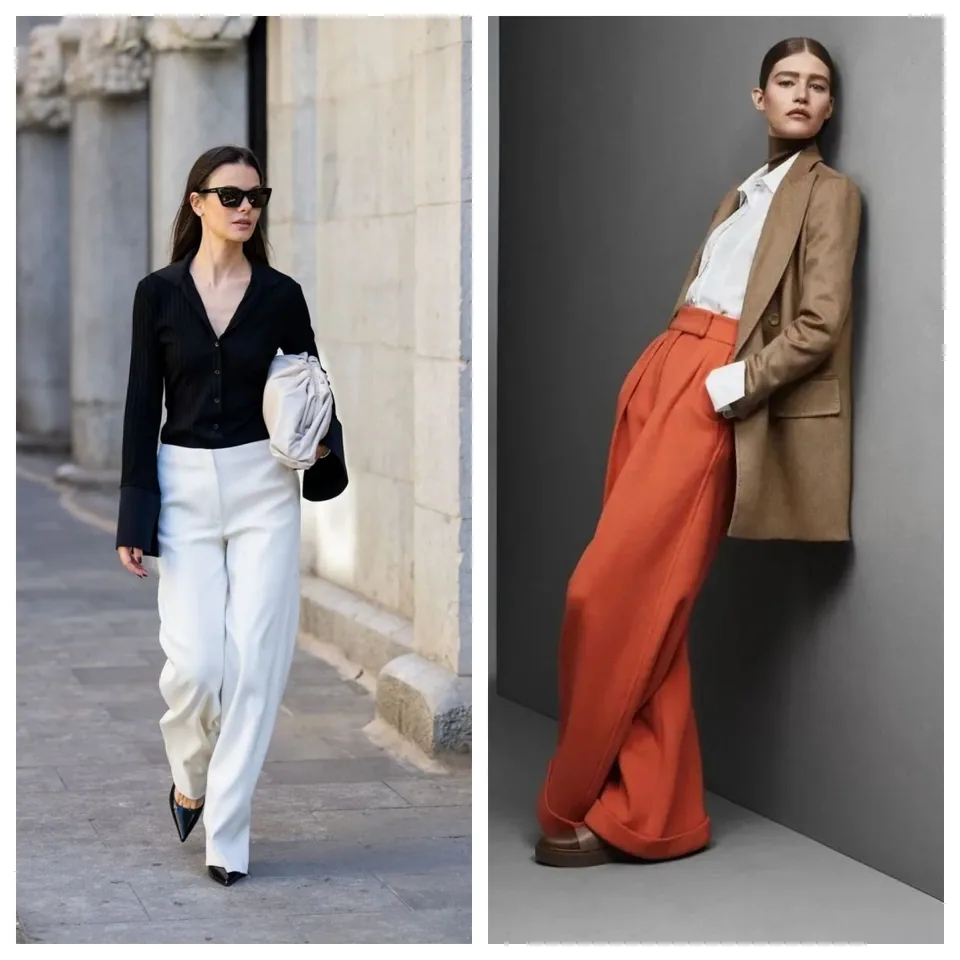
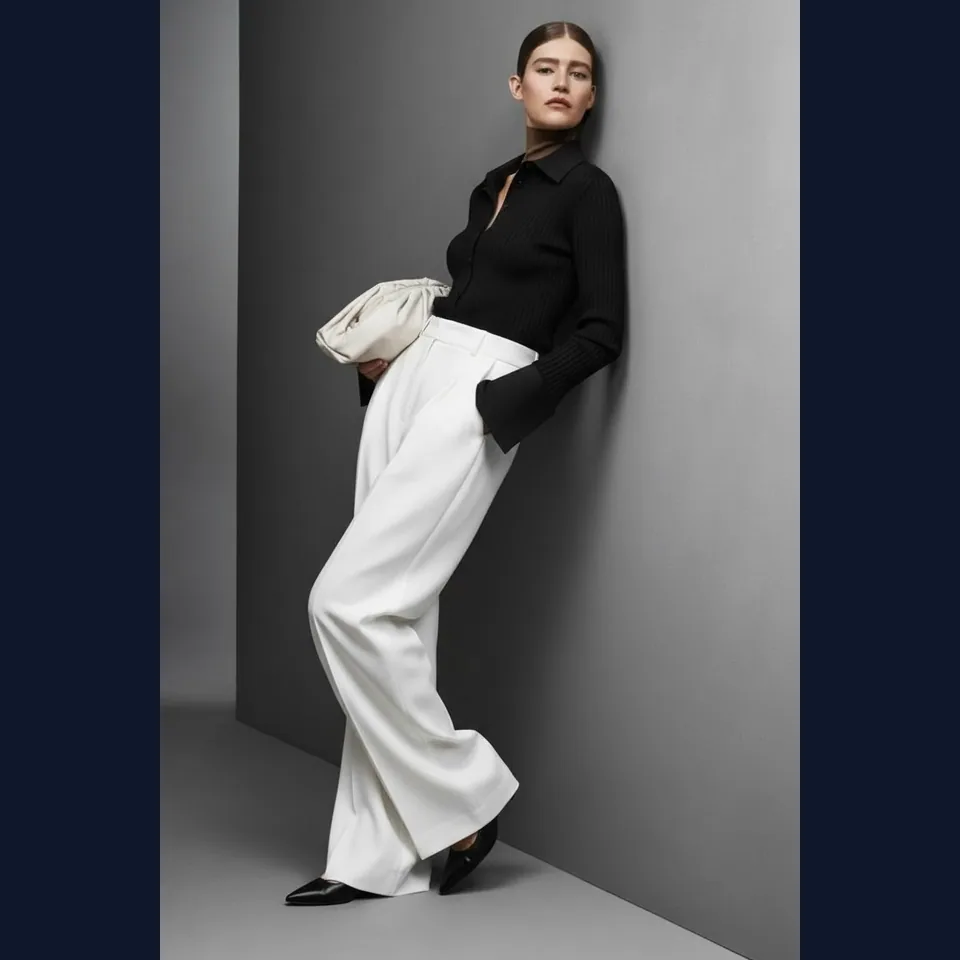
Use fashion references to create a coordinated editorial outfit while keeping the subject recognizable.
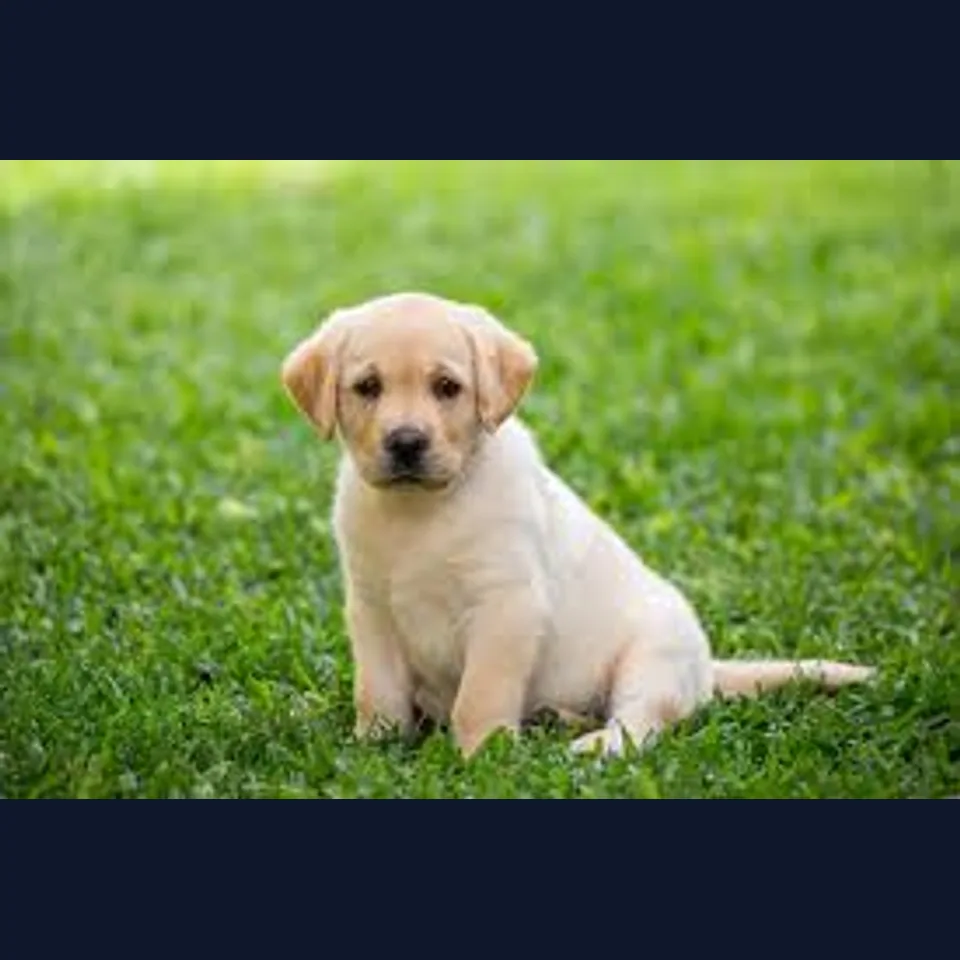
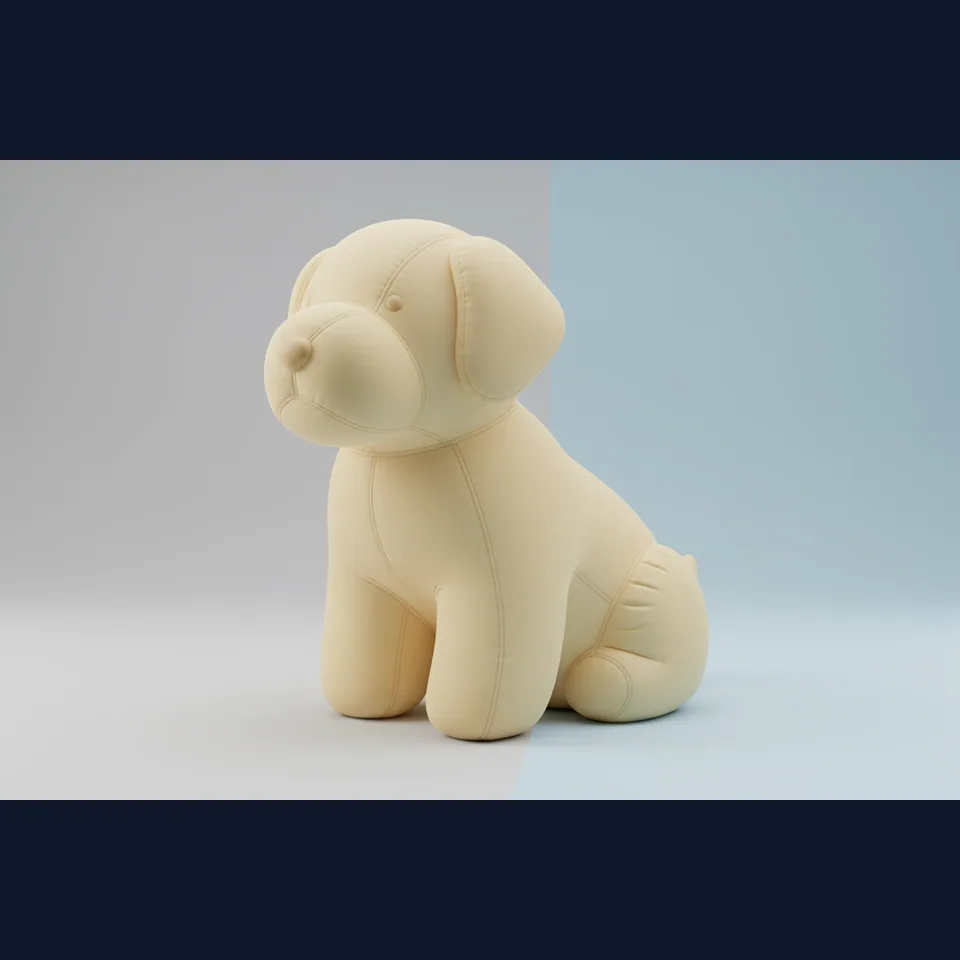
Turn the photographed subject into a stitched soft-object design without adding unrelated elements.
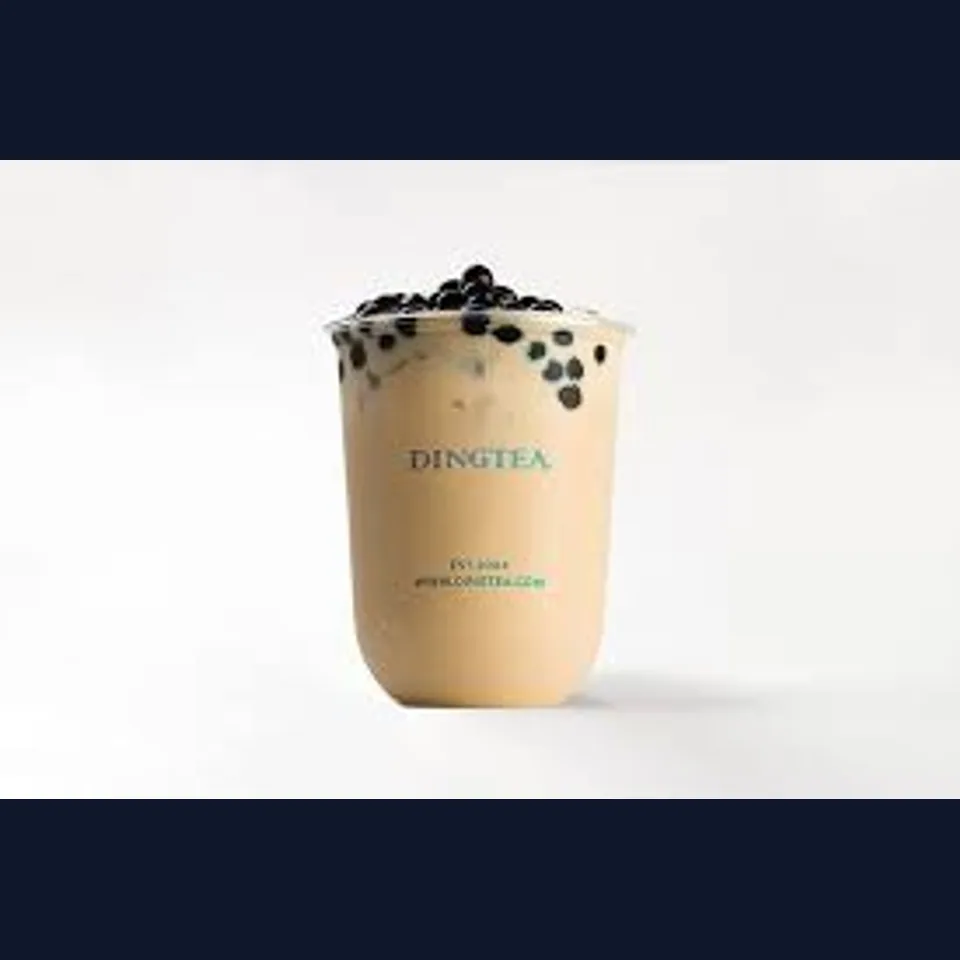
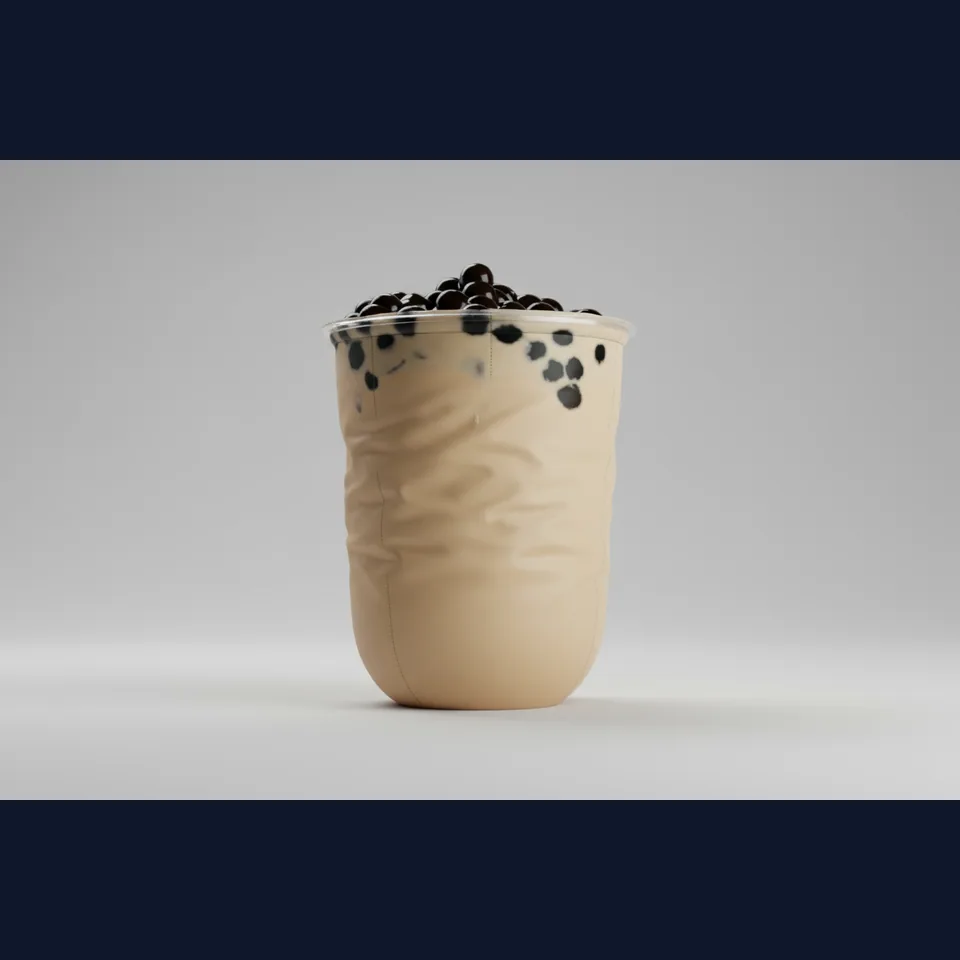
Change a drink cup into a soft stitched material while keeping its silhouette and visible pearls.
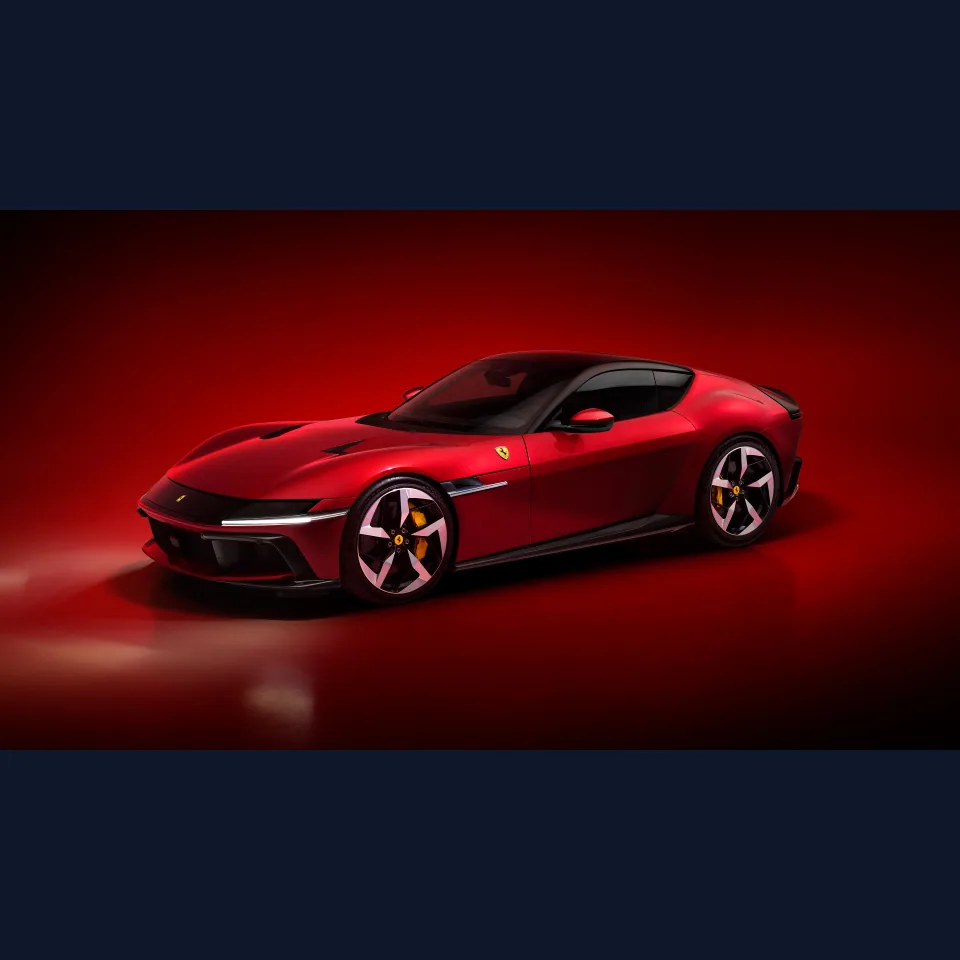
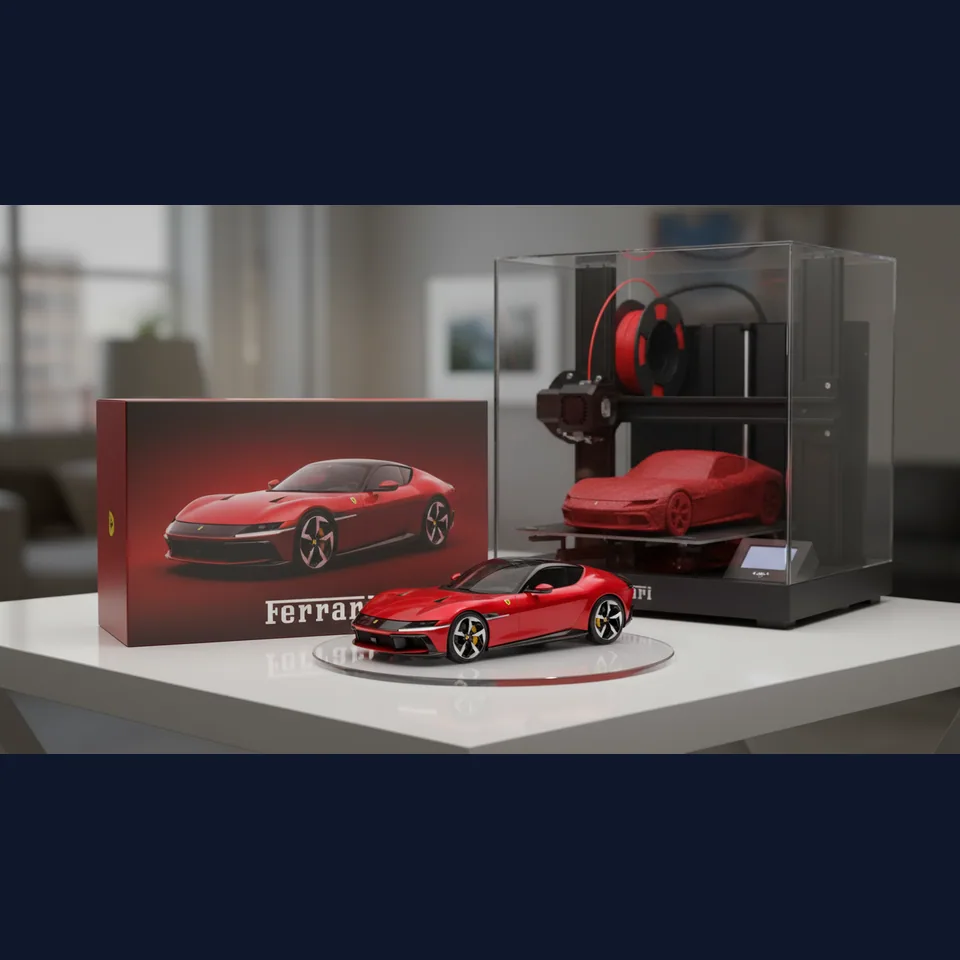
Turn a vehicle image into a collectible presentation with packaging, a base, and a printer.
Choose one JPEG, PNG, or WebP image up to 5MB. Add references only when the edit needs them.
Pick a category, write or edit a preset, and select the details the prompt should keep unchanged.
Create the task, review the Before/After result, download it, or load the result for another focused edit.
Choose only the constraints that matter for the current image. A product edit may need shape, logo, text, composition, and lighting protection. A portrait edit may prioritize the main subject, face, pose, and camera angle.
Preserve options guide the prompt; they are not pixel locks or guarantees. Compare the output closely when exact text, a logo, identity, or regulated product detail matters.
Recolor a product, update a setting, or add a prop while protecting packaging, labels, and product shape.
Preview an outfit or lighting direction while asking the model to preserve facial features and pose.
Remove distractions, adjust wall colors, or test a furnished look without changing the room layout.
Adapt one source image to a seasonal scene, campaign style, or channel-specific output format.
Create a new background, visual style, or day-to-night variation from an existing post image.
Combine visual references into a concrete direction before a designer or photographer produces final work.
Name the change first, then list the details that should remain stable.
An AI image changer edits an existing image from a natural-language instruction. You upload a primary image, describe a focused change, and select details the prompt should try to preserve.
Choose the closest change category, name the object or area you want to edit, describe the result, and select the important details that should stay unchanged. A narrow, visible change is easier to compare than a broad request.
The workflow is designed to preserve selected details such as a face, recognizable subject, product shape, logo, text, composition, camera angle, or lighting. These are prompt constraints rather than pixel-level guarantees, so review every result closely.
Yes. Choose Background, describe the new environment, and select the subject, face, product shape, composition, and camera angle when those details should remain stable.
Yes. Describe the object and where it appears, then say whether it should be removed, replaced, or added. The prompt asks the model to reconstruct nearby texture, edges, perspective, and shadows naturally.
Yes. Dedicated categories cover visible clothing, colors and materials, lighting and time of day, and broader visual styles. Use one main change per generation when you need a result that is easy to verify.
The uploader accepts JPEG, PNG, and WebP images up to 5MB per image. One primary image is required, and you can add up to four reference images.
You can prepare an edit before signing in. When you select Generate, the tool saves a 24-hour draft and asks you to sign in because generation tasks, credits, refunds, results, and Creation History are linked to an account.
Uploaded images and prompts are sent through Banana AI Pro services and the selected model provider to create the requested result. Upload only material you own or have permission to edit. See the Privacy Policy for current data-handling terms.
Commercial use depends on your rights to the input, the applicable model and service terms, and the laws that apply to your project. Review the result for logos, text, identity, and product accuracy before publishing or selling it.
Try focused haircut, hairstyle, and hair-color changes on a portrait.
Use a broader high-resolution generation and image-editing workflow.
Explore a fast image-to-image model workflow with multiple references.
Create text-rich posters, diagrams, comics, and editorial layouts.
Review plans and credit options before creating more edits.
Open completed, processing, and failed image tasks from your account.
Uploaded images and prompts are processed to provide the requested generation. Do not upload confidential, unlawful, or unlicensed material. The page does not promise a fixed deletion period because storage cleanup depends on the current production configuration.
Read the Privacy Policy