1
Choose a direction
Start with text to create a scene from scratch, or add a reference image when composition, subject, or material matters.
Create detailed images from a text prompt or your own reference image with the 4K setting selected. Generate product visuals, portraits, scenes, and creative directions for 8 credits per generation.
Check the downloaded file dimensions and visual details before using an output in a final layout or delivery.
AI Image Generator 4K - 8 credits per generation, up to 4K output
Your AI Image Generator 4K generated image will appear here
AI Image Generator 4K
Your generated image will appear here.
This page is operated by Banana AI Pro, an independent AI creation platform. It is not an official page of third-party model providers and is not affiliated with, endorsed by, or sponsored by third-party model providers. Banana AI Pro provides the interface, account system, and supporting workflow for image creation.
Use text when the scene is new. Use an approved reference image when the starting composition carries details that a prompt should not have to recreate.
Start with text to create a scene from scratch, or add a reference image when composition, subject, or material matters.
Name the subject, setting, camera view, lighting, color palette, and the details that need close inspection.
Choose square, landscape, or portrait before generating. This page keeps the AI Image Generator 4K workflow ready to use.
Inspect the downloaded result at its intended size, including text, edges, hands, reflections, and product details.
A 4K setting is useful when you need room to inspect detail or prepare an image for a large placement. It does not remove the need to check the generated result in its intended context.
Explore a polished packshot direction, material, setting, and lighting before a production shoot.
Develop a visual direction for a campaign draft, then add approved messaging and legal copy in a design tool.
Create a full-bleed visual concept for an article, pitch deck, or presentation section.
Prepare vertical or square visual directions that leave deliberate space for final copy added in a design tool.
Build wide environmental scenes with a defined time of day, viewpoint, weather, and focal point.
Use your own approved source image to explore a new setting, material, or art direction.
These examples show the kinds of product, photographic, fashion, and style directions you can develop in the workflow. Each image is a real project asset generated through Banana AI Pro.
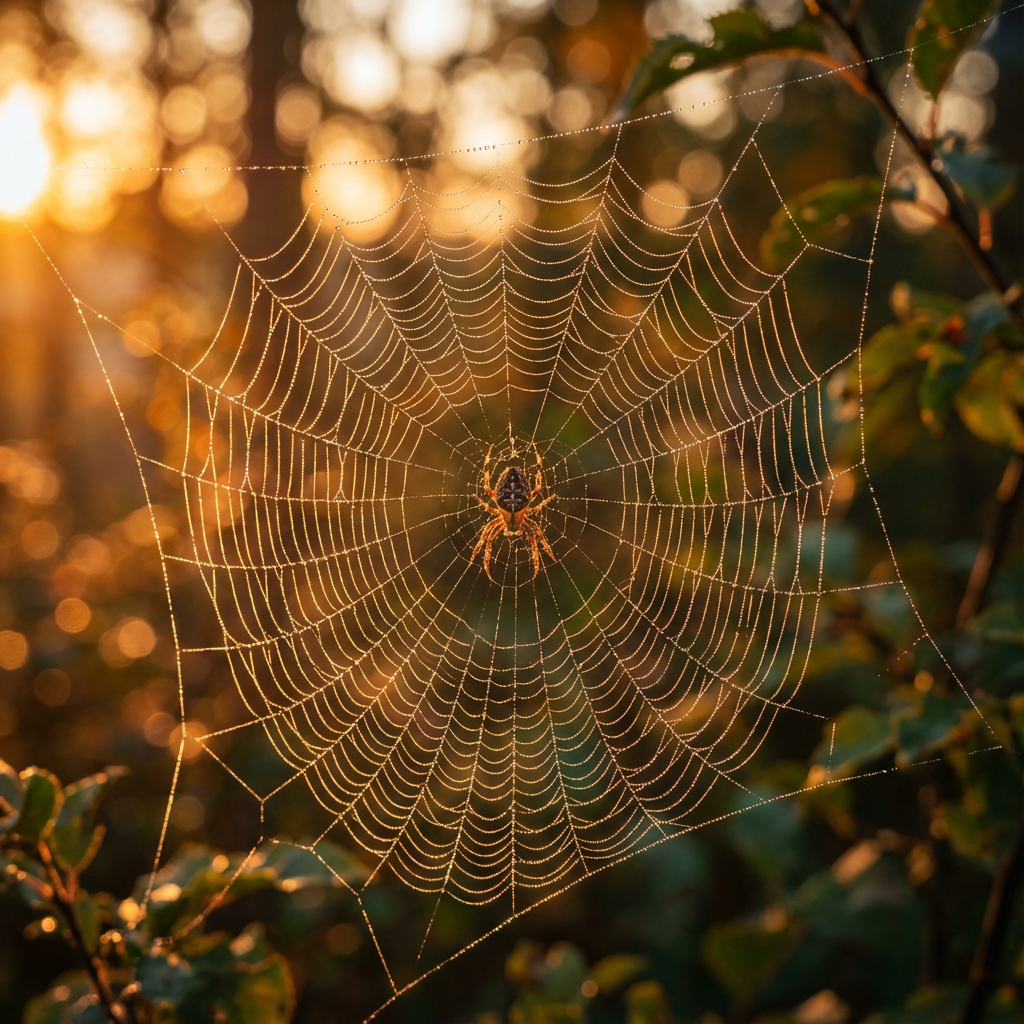
Use a high-resolution workflow when small textures, highlights, and depth layers need a closer review.
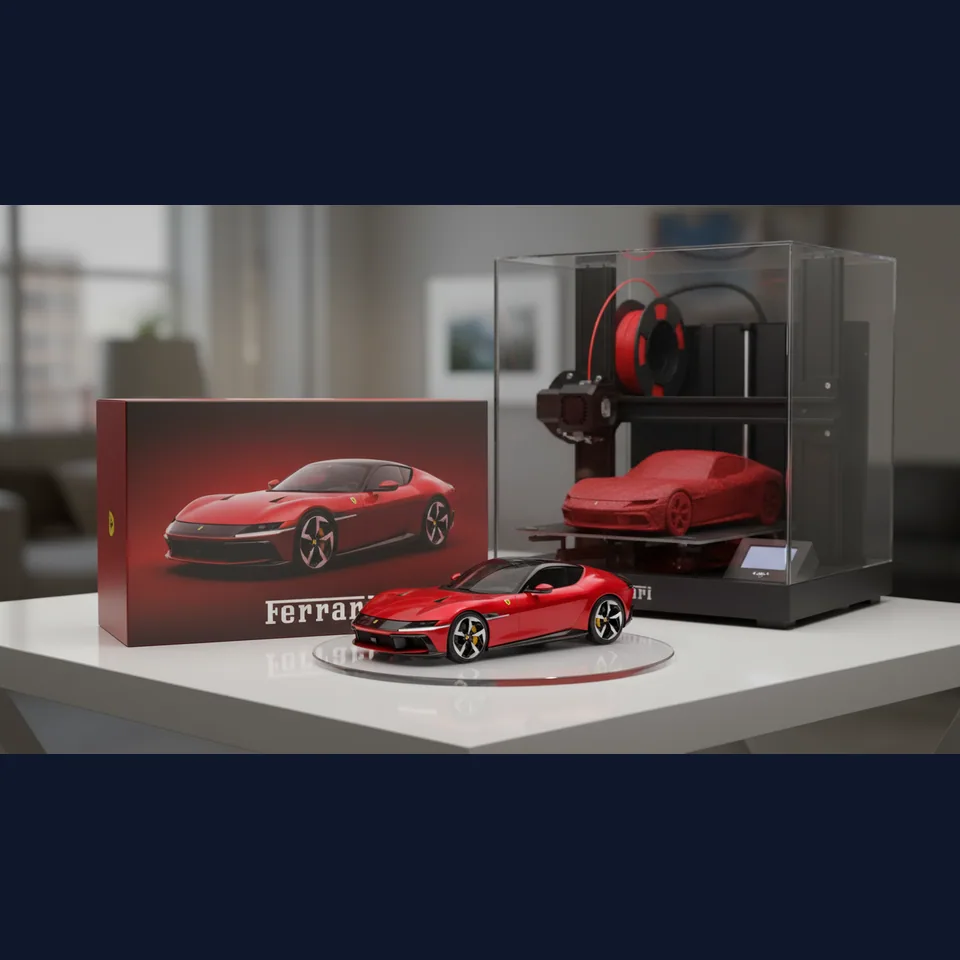
Explore materials, reflections, product staging, and campaign-ready context before production.
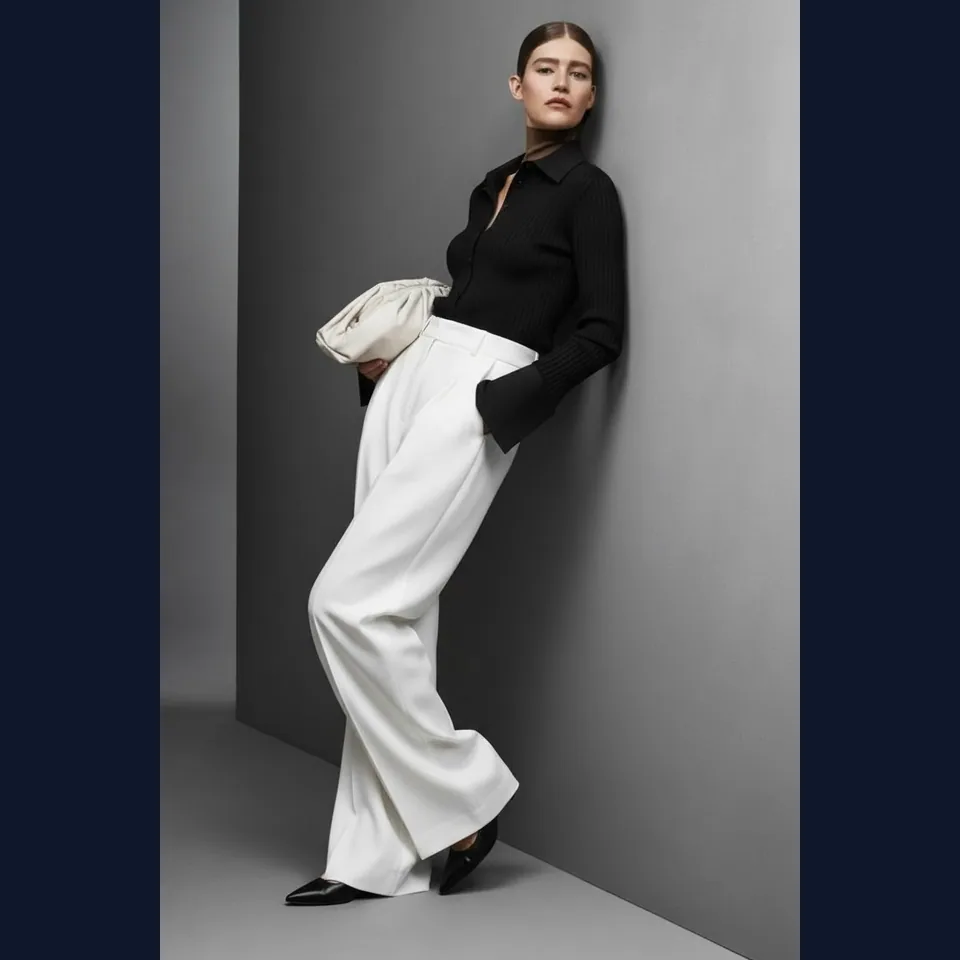
Review clothing, lighting, pose, and background treatment at a useful working scale.
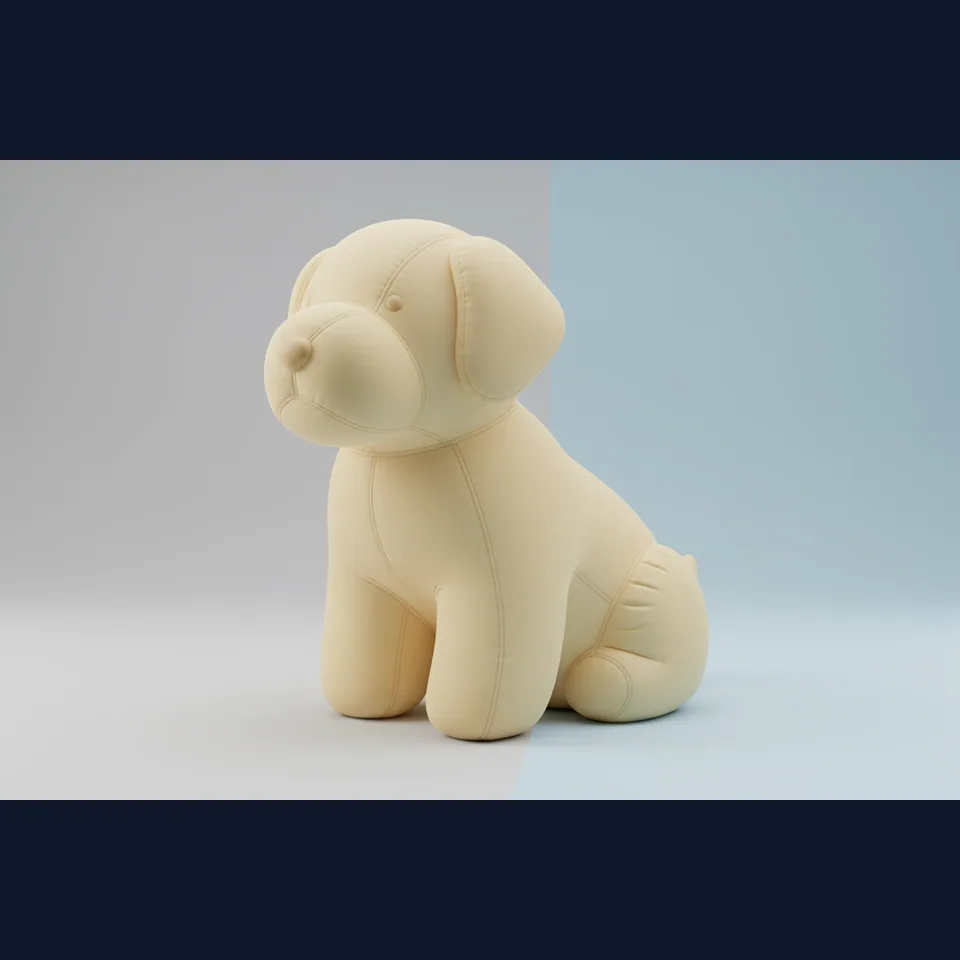
Test art direction and material treatment while preserving a clean, simple composition.
Choose one direction, then add the subject, setting, composition, lighting, and quality constraints. A shorter prompt with clear priorities is easier to evaluate than a long list of conflicting styles.
Generated imagery can be a strong starting point. Treat final review as a separate step when an output will be published, printed, or used near brand and legal requirements.
Open the downloaded file and confirm its actual pixel dimensions before placing it in a final layout.
Check the subject at 100% view for faces, hands, edges, repeated patterns, reflections, and small objects.
Do not rely on generated text, logos, labels, measurements, or claims without independent review.
Compare the framing to the destination placement and leave crop-safe space where final copy will sit.
Confirm you have permission to use every uploaded reference, person, logo, and protected design element.
Run a focused revision when one detail is wrong instead of adding unrelated instructions to the next prompt.
This page starts the AI Image Generator 4K workflow with its 4K resolution setting selected. Generated file dimensions can depend on the chosen aspect ratio and provider response, so inspect the downloaded file before a final production use.
Each AI Image Generator 4K generation on this page costs 8 credits. Your account balance is checked before the request is submitted.
Yes. Use Text to Image for a new direction, or Image to Image to provide a source that guides the subject, composition, material, or style. Only upload references you are allowed to process.
Use 1:1 for square compositions, 16:9 for wide scenes, and 9:16 for vertical placements. Choose the format that best matches the destination before generating to reduce later cropping.
No. Generated images require review, especially where a result contains small text, branded elements, faces, hands, measurements, or precise product construction. Make focused iterations when a detail is important.